Set up a basic NPM-based project
In this tutorial you will set up a simple NPM project that runs an HTTP server using Express.js
Get the code

During this tutorial we will set up a basic project that uses BrowserPod to run a web server application entirely client side in the Browser.
You can get the source by running npm create browserpod-quickstart@latest and
selecting the “Web Server” template.
Project structure
The project consists of the following files and directories:
├── .env├── index.html├── package.json├── public│ ├── favicon.png│ ├── logo.png│ └── project│ ├── main.js│ └── package.json├── src│ ├── main.js│ ├── style.css│ └── utils.js└── vite.config.jsThere are two different NPM projects at play:
- The top level project, which is a Vite project serving a web page with BrowserPod running in it.
- The inner project, in the
public/projectdirectory, which is the web application that we want to run inside BrowserPod itself. It’s a simple Hello World express.js application.
Let’s go through the relevant files one by one, explaining their purpose!
Project’s package.json
Let’s start from the inner project. This is the NPM project that we want to run inside BrowserPod.
Its package.json is very simple:
{ "name": "expressjs-tutorial", "version": "1.0.0", "description": "", "main": "main.js", "scripts": {}, "author": "", "license": "MIT", "dependencies": { "express": "^5.1.0" }}The only dependency is express.js, a popular web framework.
Project’s main.js
This is the main code of the project. A simple hello world web server (actual content of the html omitted for brevity):
const express = require("express");const app = express();const port = 3000;
app.get("/", (req, res) => {  res.send(`    <!DOCTYPE html>    <html lang="en">    ...    </html>  `);});
app.listen(port, () => {  console.log(`Example app listening on port ${port}`);});
Top level package.json
The top level package.json is also very minimal. The only dependencies are Vite (used to bundle the code and run a development server), and BrowserPod:
{ "name": "bp-tutorial", "version": "0.0.0", "type": "module", "scripts": { "dev": "vite", "build": "vite build", "preview": "vite preview" }, "devDependencies": { "vite": "^7.2.4" }, "dependencies": { "@leaningtech/browserpod": "latest" }}vite.config.js
This file contains the Vite configuration. See https://vitejs.dev/config for all possible options. We are only interested in setting up COEP
and COOP headers,
which are necessary for BrowserPod to function.
for all possible options. We are only interested in setting up COEP
and COOP headers,
which are necessary for BrowserPod to function.
import { defineConfig } from "vite";
// https://vitejs.dev/config/export default defineConfig({  server: {    headers: {      "Cross-Origin-Embedder-Policy": "require-corp",      "Cross-Origin-Opener-Policy": "same-origin",    },  },});
index.html
This is the entry point of our application. It defines a basic HTML page with a few elements that we will use to set up BrowserPod.
<!doctype html><html lang="en"> <head> <meta charset="utf-8" /> <meta name="viewport" content="width=device-width, initial-scale=1.0" /> <title>Hello BrowserPod</title> <link rel="icon" type="image/png" href="/favicon.png" /> <link rel="stylesheet" href="/src/style.css" /> </head> <body> <div class="container"> <div class="header"> <img src="/logo.png" alt="BrowserPod Logo" class="logo" /> <h1>Hello BrowserPod</h1> </div> <p>Running Node.js in your browser</p> <div id="url">Waiting for portal...</div> <div class="preview-container"> <iframe id="portal"></iframe> <pre id="console"></pre> </div> </div> <script type="module" src="/src/main.js"></script> </body></html>src/utils.js
This file contains the utility function copyFile, that we will use in the main
script to copy files into the Pod.
export async function copyFile(pod, path) { const f = await pod.createFile("/" + path, "binary"); const resp = await fetch(path); const buf = await resp.arrayBuffer(); await f.write(buf); await f.close();}src/main.js
The main logic of our application. Here we create our Pod and run our express.js project in it.
import { BrowserPod } from "@leaningtech/browserpod";import { copyFile } from "./utils";
// Initialize the Podconst pod = await BrowserPod.boot({ apiKey: import.meta.env.VITE_BP_APIKEY });
// Create a Terminalconst terminal = await pod.createDefaultTerminal(  document.querySelector("#console"));
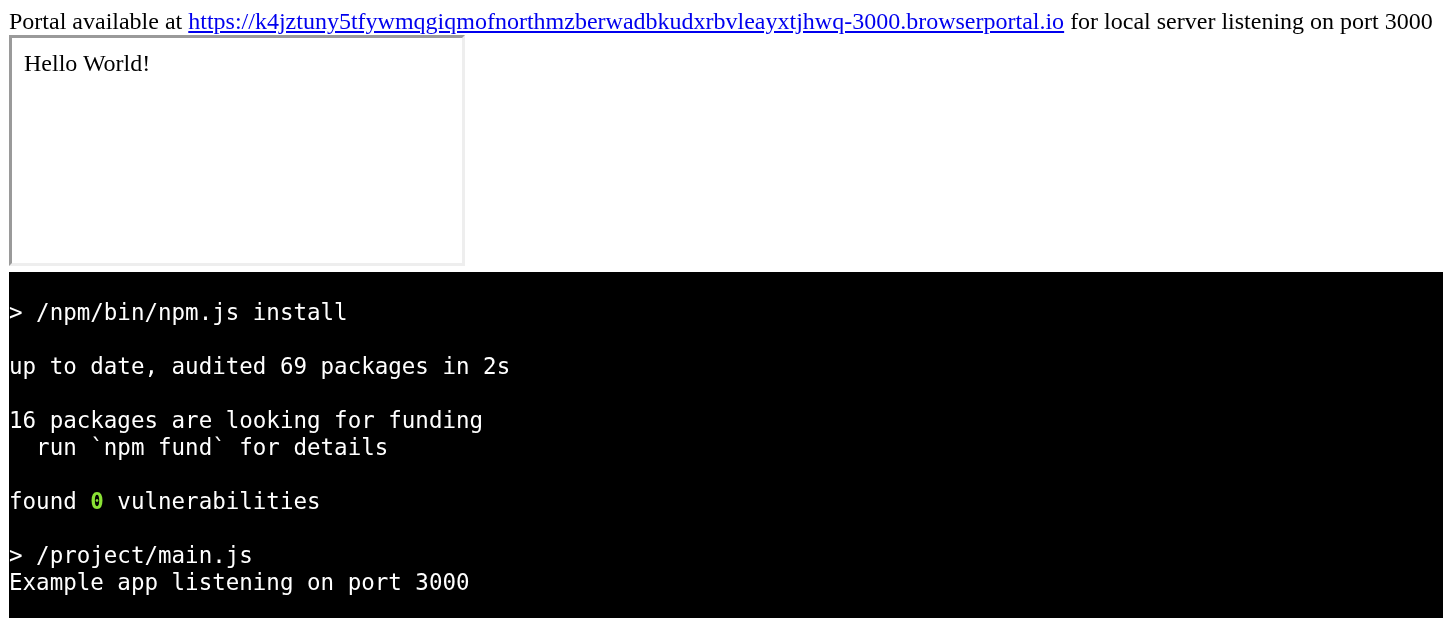
// Hook the portal to preview the web page in an iframeconst portalIframe = document.getElementById("portal");const urlDiv = document.getElementById("url");pod.onPortal(({ url, port }) => {  urlDiv.innerHTML = `Portal available at <a href="${url}">${url}</a> for local server listening on port ${port}`;  portalIframe.src = url;});
// Copy our project filesawait pod.createDirectory("/project");await copyFile(pod, "project/main.js");await copyFile(pod, "project/package.json");
// Install dependenciesawait pod.run("npm", ["install"], {  echo: true,  terminal: terminal,  cwd: "/project",});// Run the web serverawait pod.run("node", ["main.js"], {  echo: true,  terminal: terminal,  cwd: "/project",});
We first boot our Pod, passing a valid Api Key as an argument.
Then we set up a terminal in the “console” element that we added to index.html,
so that we can see the output of the commands that we are going to run in the Pod.
Then we register a callback that will be notified every time an http server is started inside the Pod.
The callback takes a Portal URL as an argument: a randomly generated, publicly accessible URL that you can use to show and interact with the inner project.
We will show that the page is up and running and link to it in our #url div,
and display a live rendering of it in our #portal iframe. Which were both set
up in our index.html page.
Then we copy the project files inside the Pod, using the copyFile utility function.
Finally, we run some commands inside our Pod: npm install to install express.js
and its dependencies, and node main.js to start the web server.
Once the installation and setup are completed, you should see the iframe loading the main page of the project, served from inside the Pod via the Portal.
End result